9. Critical curves and caustics
Critical curves are contours in the image plane where $\det(\partial\boldsymbol{\beta}/\partial\boldsymbol{\theta}) = 0$. Sources near a critical curve are highly magnified and stretched into arcs. Their pre-images in the source plane are the caustics; crossing a caustic changes the image count by two.
The computation proceeds in four steps:
Sample a ray grid. Trace $N \times N$ rays (the Critical curves resolution in the Settings tab, default $N = 512$) to the chosen source plane, recording $\boldsymbol{\beta}$ at each point. The grid covers $1.3\times$ the field, so curves near the edge are found in full, or the FOV buffer (Settings tab, default 5″) if that is larger. Zoomed in on the caustics, their critical curves can lie well outside the view, and the buffer keeps them on the grid; since the grid size is fixed, a larger buffer makes it coarser at high zoom.
Compute the Jacobian. At each interior grid point, approximate the $2\times2$ Jacobian $\partial\boldsymbol{\beta}/\partial\boldsymbol{\theta}$ via central finite differences and compute its determinant.
Find zero-crossings. Apply marching squares: for each $2\times2$ cell, linearly interpolate zero-crossings on edges where the determinant changes sign. Each cell contributes one short segment; adjacent cells chain into smooth curves.
Map to caustics. Each critical-curve point is traced to the source plane by interpolating from the already-computed $\boldsymbol{\beta}$ grid.
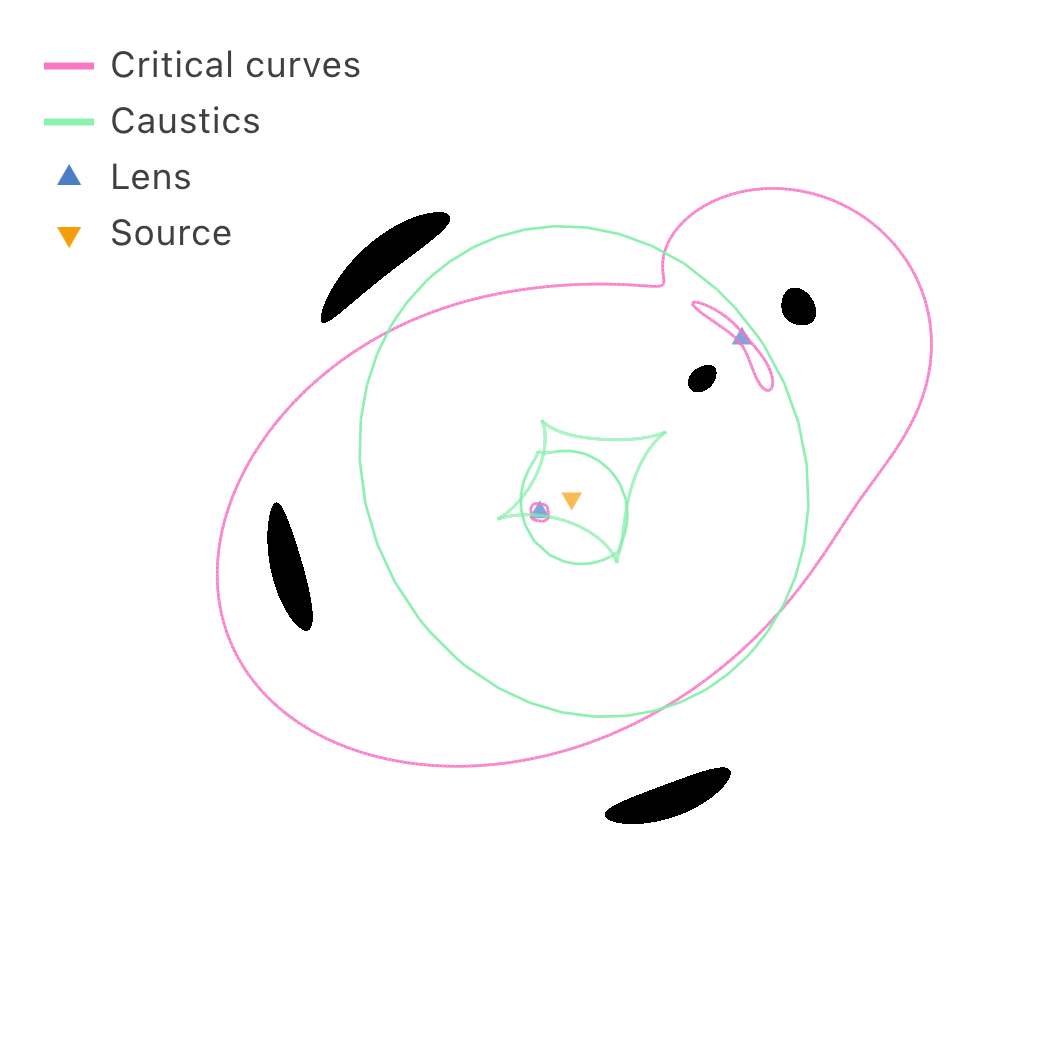
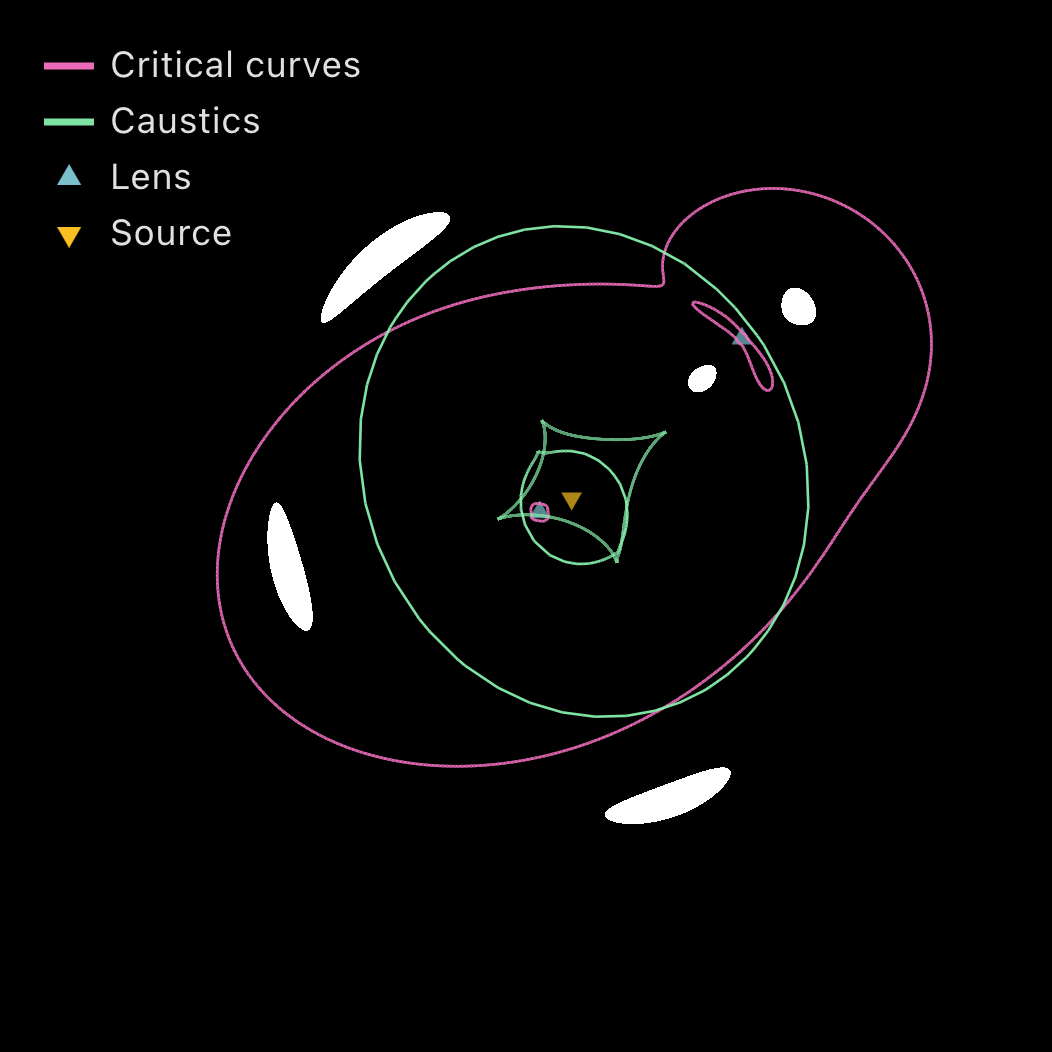
Note. Fine features such as cusps are only resolved at higher resolutions.
Tangential and radial curves
On a critical curve one eigenvalue of $A$ is zero and the other equals $\operatorname{tr} A$. A segment is tangential when $\operatorname{tr} A > 0$ (for a single plane, $1-\kappa-\gamma = 0$) and radial when $\operatorname{tr} A < 0$ ($1-\kappa+\gamma = 0$), and the test holds for multiplane lenses too. Each caustic segment takes the label of its critical segment.
With Curve types on (View tab, Critical curves section; on by default), radial curves and caustics are dotted and tangential ones solid, each with a legend entry, and Show can limit the display to one type. With it off, all curves are solid.
A point mass has no radial curve. An SIE’s radial critical curve is a tiny loop set by the numerical softening, but its radial caustic, the cut, is full size. An NIE with $r_c > 0$ and an EPL with $\gamma’ < 2$ have resolved radial curves. Radial loops under 12 coarse-grid segments are dropped as artefacts of a singular centre.
Line art (vector render mode)
The Line art switch in the Colors section replaces the raster (WebGL) image with a flat, minimal vector rendering of the lensing structure, drawn entirely on the 2D overlay canvas. It is meant for clean, poster-style figures: filled and stroked lensed-image outlines, point-source image dots, and (following their own View-tab toggles) critical curves and caustics, in a chosen palette. The palettes are fixed looks (independent of the site’s light/dark theme): Default, Ink, Ink (inv.), Crimson, Crimson (inv.), Blueprint, Blueprint (inv.), Espresso, Mint, and Noir. Default is the one line art starts on: the dark-mode page background (#0d1117) behind the homepage hero blue (#93c5fd) for the images and critical curves, so a fresh line-art view matches the artwork on the front page, with the caustics picked out in the source marker’s gold (#fbbf24). While line art is on, the section shows its options, palette and colors: below the palette dropdown, a color picker for each role (background, image fill, image line, critical, caustic, point image, and the lens / source / hybrid markers) lets you fine-tune any color after choosing a palette; re-selecting a palette resets them. The marker colors also drive the matching “show shape” outlines. Above the palette are a Fill toggle that switches between filled shapes and outline-only, a Smooth toggle that controls curve smoothing, and a Fill alpha box: the opacity of the lensed-image fill, from 0 (outline only) to 1 (solid), defaulting to 0.9 (greyed out while Fill is off). Like the other numeric fields in the app you can type into it or drag left/right across it to scrub. The palette choice, any per-role overrides, and the fill alpha are saved in the config file. The section’s i button explains what is drawn.
Line art is a restyle of the normal overlay, not a stripped-down separate view: the position markers, ruler, scale bar, and legend all remain visible exactly as before (per their own toggles), so switching line art on hides nothing. The raster image layer is simply replaced by the flat palette background plus the vector structure. Those remaining annotations take their color from Annotation color below rather than from the palette.
Export. Because line art draws to the overlay, PNG capture and recording pick it up unchanged. The Export tab also offers Save SVG (line art) (enabled while line art is on), which re-serialises the same geometry to a resolution-independent SVG document (<path> outlines and curves, <circle> image dots) for editing in vector tools or printing at any size. The Background toggle beside it (on by default) controls whether that document carries the opaque palette-colored backing rectangle; switching it off exports the vector structure on a transparent canvas, ready to drop onto a background of its own.
Only two source types produce clean lines and are drawn in this mode; Gaussian, exponential, and pasted-image sources have no hard edge and are ignored:
- Point sources are their solved image positions, drawn as dots.
- Uniform-disc sources have a hard edge, so their lensed image has a well-defined boundary: the zero level-set of
where $r_\text{ell}$ is the disc’s elliptical radius (Section 6) and $r$ its semi-major-axis radius. This is extracted by marching squares over the same $\boldsymbol{\beta}$ grid used for the critical curves (one ray trace feeds both when they are shown together), thresholding $g$ instead of the Jacobian determinant.
Adaptive smoothing. Near critical curves the magnification diverges, so $g$ is strongly nonlinear and a naive contour looks ragged or breaks up on thin, elongated arcs. Two mechanisms address this without a costly uniform grid:
- Per-vertex secant refinement. Marching squares first places each crossing by linear interpolation of $g$ along a cell edge; a few bounded false-position steps then re-evaluate $g$ (by tracing that ray) and pull the vertex onto the true contour. The cost scales with contour length rather than grid area, and the iterations self-concentrate exactly where $g$ bends most, i.e. the high-magnification regions.
- Curvature-aware Chaikin smoothing. The refined segments are chained into ordered polylines and corner-cut, but vertices whose turn is sharper than a threshold (a genuine cusp) are pinned, so sampling staircase is rounded off while real sharp features are preserved.
The base grid follows the Critical curves resolution setting (capped for live responsiveness); the secant refinement supplies the smoothness, so a moderate grid suffices.
Annotation color
The Annotations row of the Colors section sets the single ink used for the plot furniture that is not tied to a particular object: the scale bar, the legend text, the ruler lines and their measurement labels, the time-delay pills, and the Fermat stationary-point markers and their legend. Object-specific colors (lens / source markers, critical curves, caustics, point-source dots, and every line-art role) are unaffected.
With Auto on (the default) the ink snaps to white or black with the page’s light / dark theme, giving the white-on-dark and black-on-light annotations the plot has always had. Choosing a color in the picker turns Auto off and pins that color, so annotations can be black on a dark page (or any other color) without switching the whole site theme. Re-checking Auto hands control back to the theme; unchecking it by hand pins whatever color was showing, so nothing jumps. Line art is the case this matters most for: a light palette (Ink inv., Mint, Espresso) on a dark page needs a black ink to keep the scale bar and legend readable, and pinning one is how you get it without flipping the whole site to light mode.
The Legend BG toggle (Display section, off by default) puts a translucent panel behind the legend and the Fermat image-type legend, so overlays underneath don’t run through the text.
The picker takes any color, not just black or white. Halos, label-pill backgrounds and marker backings pick the contrasting member of their pair from the ink’s brightness, so a light ink keeps its dark backing and vice versa. Both the Auto switch and the pinned color are saved in the config file (annotAuto, annotColor); the page theme itself is not, since it is a site-wide preference.