10. Recording, capture, and animation
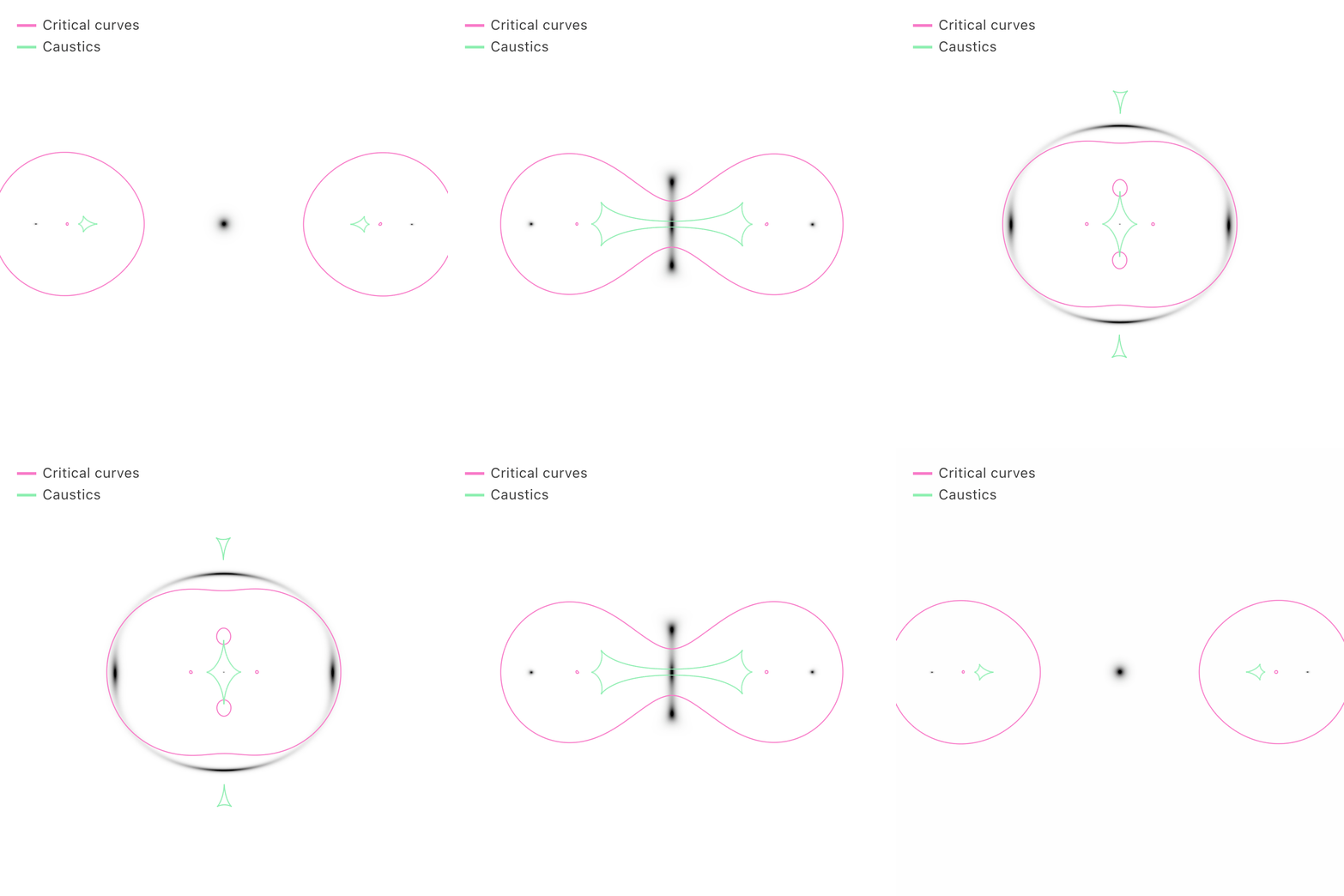
The Export tab in the right rail turns the live view into a still image, a video, or a smooth animation. Every capture reflects exactly what is on screen: the active view (lensed image or any quantity map), the overlay (position markers, critical curves and caustics, ruler measurements), and the color bar. UI chrome (the rail, the quantity dropdown, the ruler and zoom buttons, the performance badge) is excluded, and in the lensed-image view the same light-mode inversion used on screen is baked into the output so the file matches what you see.
Still image
Save PNG writes a single frame of the current view to caustica.png, at whatever resolution the canvas is currently drawn at, which the Render scale setting below controls.
Render scale
The image panel has two independent sizes: how large it appears on screen, and the resolution the shader actually computes. Render scale (Settings tab) sets the ratio between them, and so fixes both how sharp the plot looks and how many pixels a PNG or video frame comes out with.
The factor applies to width and height separately, so the cost is quadratic: doubling the scale computes four times as many pixels. High-density screens (most phones, and Retina laptops) report a device pixel ratio of 2 or 3, meaning one layout pixel covers a 2×2 or 3×3 block of real display pixels.
| Mode | Scale used | Notes |
|---|---|---|
| Auto | the display’s ratio, capped at 2 | Default. On a ratio-3 phone this is visually all but indistinguishable from Native while computing $2^2/3^2 \approx 44\%$ as many pixels. |
| 1× | always 1 | Fastest, and slightly soft on a high-density screen. Useful for keeping a heavy multiplane scene interactive. |
| Native | the display’s full ratio | Sharpest and slowest; also the largest PNG, which is the reason to pick it for a figure destined for print. |
The setting changes only sharpness and speed. It never affects the lensing computation, so a scene renders the same physics at every scale, and it is stored in config files as renderScale.
Video and GIF formats
Two output formats are offered, selected by the Format control:
| Format | Encoder | Notes |
|---|---|---|
| WebM | Browser-native MediaRecorder | Fast and lightweight. During a programmatic animation, critical curves are omitted so the real-time encoder keeps accurate frame timing. |
| GIF | Vendored gif.js, loaded on demand | Auto-looping and universally shareable, but slower to encode and limited to 256 colors. All frames share one palette, with exact entries for the interface colours, so colours don’t flicker between frames. Programmatic animations include critical curves at full resolution. |
The Frame rate control offers 5, 10, 15, 24, or 30 fps.
Free recording
Press Record (or the R key) to begin, then interact with the scene however you like: drag objects, adjust parameters, switch quantity maps, toggle overlays. Frames are grabbed at the chosen frame rate as you work. Press Stop (or R again) to finish and download the file (caustica.webm or caustica.gif). Recording stops automatically after 30 seconds as a safeguard.
Stopping does not hand you the file straight away: it still has to be assembled, and a GIF is encoded frame by frame in web workers, which can take several seconds for a long capture. While that runs, the recording dot over the image is replaced by an Encoding GIF 40%… notice (Saving WebM… for the browser-native path, which is quick), and the Record button reads Encoding… and is disabled, so it is clear the download is still coming and a second recording cannot be started on top of the first. Both clear the moment the browser is handed the file.
Programmatic animation
For smooth, reproducible motion without hand-dragging, use the Programmatic section:
- Select an object, place it at its starting point, and click Set beside Initial; move it to its ending point and click Set beside Final.
- Click Add to program. Repeat for as many objects as you like.
- Set a Duration (0.5 to 60 s) and click Record program. With Loop on, the motion plays forward and then in reverse, so a looping GIF has no jump. This doubles the length, and objects end back where they started.
Every listed object is interpolated linearly and simultaneously from its initial to its final position over the duration, rendered frame by frame at the chosen frame rate (output caustica-prog.webm or caustica-prog.gif). Because the positions are computed rather than dragged, the animation is deterministic and free of the jitter of a hand-held drag.
Data export (CSV)
The Data section at the bottom of the Export tab writes the most recently computed overlays to CSV, with all positions in arcseconds. Curves exports the critical-curve and caustic segments (one row per segment, labelled critical or caustic with a tangential or radial type, at the source redshift they were computed for); Image positions exports the numerically solved point-source image positions. Each button enables once the corresponding overlay has been computed at least once (show critical curves, or add a point source).